Reliable corporate event audio connects PowerPoint videos and embedded sound directly to the room’s sound system, with someone responsible for playback and volume. A presentation laptop’s speakers won’t provide clear, consistent coverage for a ballroom or conference audience.
A coordinated corporate AV plan for corporate events brings the presentation, microphones, DJ music, and production team together. The priority is clear ownership, supported by tested connections and a practical backup. Start with the venue, then prepare each presentation cue around the room and program.
Key Takeaways
- Route presentation sound through the main audio system and test the actual laptop, slides, and connections.
- Give every video, microphone handoff, and music cue a responsible operator in the run of show.
- Complete testing at least 30 minutes before doors open, with replacement equipment and alternate playback ready.
1. Assess the Venue Before Selecting Equipment
A dependable setup begins with the room’s requirements, which guide AV production choices, not a standard equipment package. A venue walk-through helps coordinate audio visual needs with the venue and any AV company involved. Our corporate event AV planning guide covers how sound, displays, and event logistics work together.
Review Access, Power, and Acoustics
Record ceiling height, available power, Wi-Fi strength, ambient noise, and venue sound limits. Glass walls, hard floors, and high ceilings can affect speech clarity; adding volume doesn’t necessarily improve intelligibility.
Document loading access, parking, elevators, equipment routes, and room availability. Assign electrical and rigging questions to qualified venue or AV personnel, and keep cables protected around guest and service routes.
Match Displays to Lighting and Room Depth
Projection works well in dim ballrooms. Bright or windowed rooms generally need large televisions or LED panels for better visibility.
Choose screen size around viewing distance, particularly the back row, rather than headcount alone. Small presentation text remains difficult to read on an undersized display, even when video looks acceptable. Coordinate stage lighting so guests can see presenters without washing out the screen.
2. Prepare PowerPoint Files and Presentation Audio
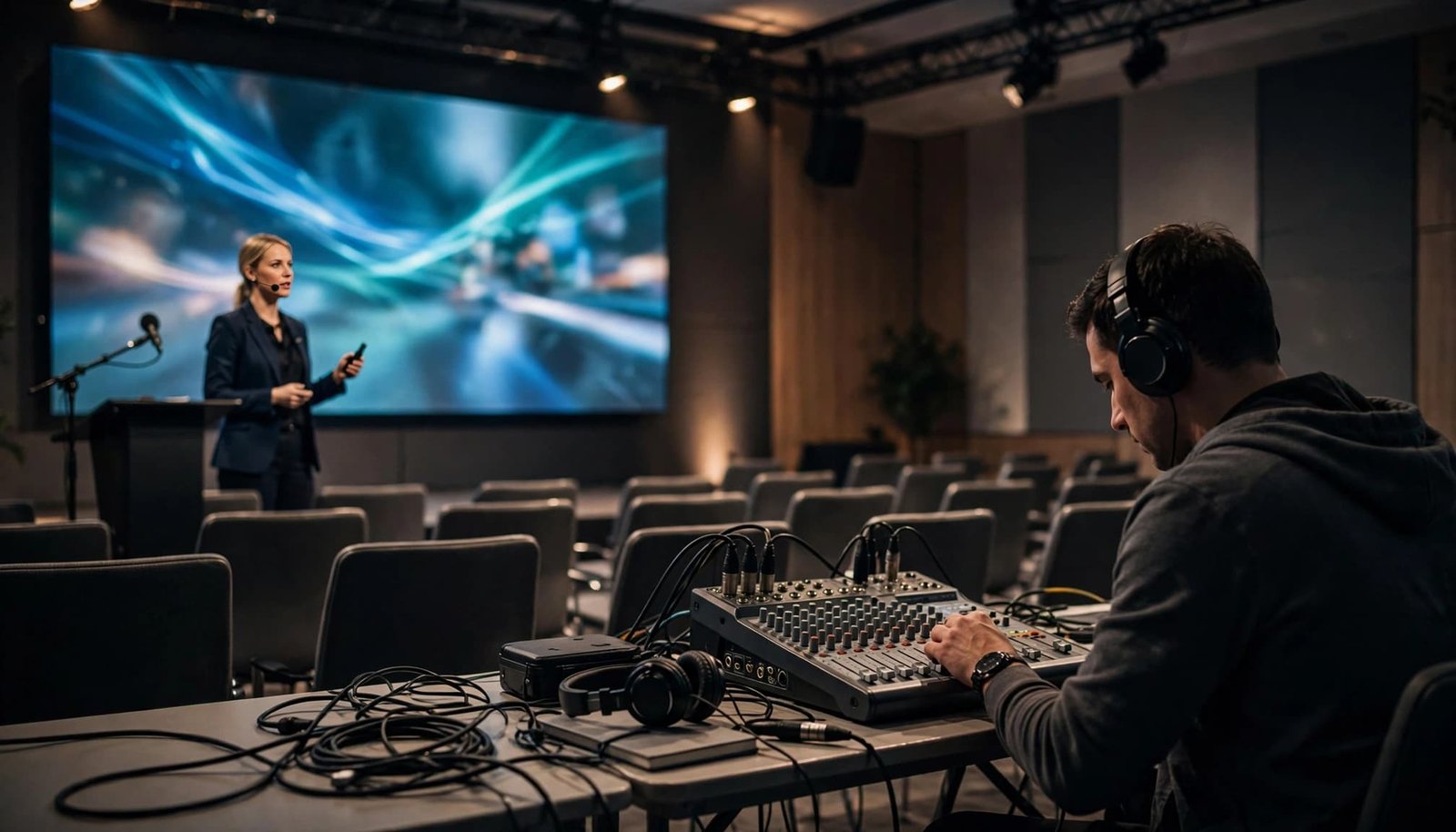
Presentation playback needs its own preparation, even when the DJ’s music and microphones already sound excellent.
Embed Media and Prepare Offline Playback
Embedded media travels within the presentation, while linked media depends on a separate file location. Moving a deck without its linked files can interrupt playback.
Microsoft’s instructions for inserting and playing video files explain the available options. Prepare the final deck on the actual presentation computer, and keep approved standalone copies of important videos available.
For dependable playback, use locally stored media rather than relying on venue Wi-Fi. Review whether each clip starts automatically or requires a click, and whether it should stop before the next slide.
Give Presentation Sound a Dedicated Mixer Channel
Agree on the audio path before load-in. Confirm that any playback interface or adapters from an AV rental are compatible with the presentation laptop and planned audio path.
A wired audio interface can connect the laptop to the mixer; other setups may use an approved HDMI audio connection or venue playback system.
Selecting HDMI can redirect computer sound to a display, leaving the mixer silent. Set the intended output after connecting the complete system.
Keep presentation audio separate from DJ music on the mixer. This gives the operator independent level control and allows background music to fade before video dialogue begins.
3. Build a Shared Run of Show
For corporate events, a written run of show coordinates event production, gives presentation and playback cues a clear sequence, and prevents conflicts. Include each segment’s start time, speaker, pronunciation notes, slide changes, video starts, music cues, and expected duration.
Name the person advancing slides, starting videos, operating presentation sound, and calling stage cues. One show caller should authorize holds and schedule changes.
Record what happens before and after each clip. The DJ may fade background music, the presenter may introduce the video, and the AV operator may start playback after the caller’s signal.
Our guidance on product launch playback and reveal cues applies the same coordination to timed announcements and presentation moments.
Share one current version with the planner, host, DJ, venue contact, AV lead, and caterer. Include direct contacts and an after-hours emergency contact; outdated schedules create avoidable confusion during transitions.
4. Match Microphones and Speakers to the Program
Microphones should support how presenters speak and move. Loudspeakers should provide comfortable coverage across the seating area, with enough control for both speech and recorded media.
Select Microphones for Presenters and Panels
Handheld microphones suit stationary speakers and straightforward announcements. Lavalier and headset microphones free presenters to gesture, operate a clicker, and move across the stage.
Panels often use multiple wireless microphones, such as lavaliers, with a tabletop or gooseneck microphone for the moderator’s questions. Individual handhelds or tabletop microphones can also suit seated discussions.
Our panel discussion sound planning guide covers microphone handoffs and audience questions. Include a separate plan for audience Q&A so questions reach the room and any remote attendees.
Plan Coverage Rather Than Maximum Volume
Large events need a system designed around room depth, seating, acoustics, and program content. Distributed speakers may provide more even coverage than a louder pair at the front.
Recorded video dialogue needs the same attention as live speech. Subwoofers can support music-heavy content, but they don’t correct unclear voices or poor speaker placement.
5. Rehearse the Complete Playback Chain
An AV technician should test every microphone, slide clicker, and video source during the sound check, at least 30 minutes before doors open. Treat that as the completion deadline, not the time to begin setup.
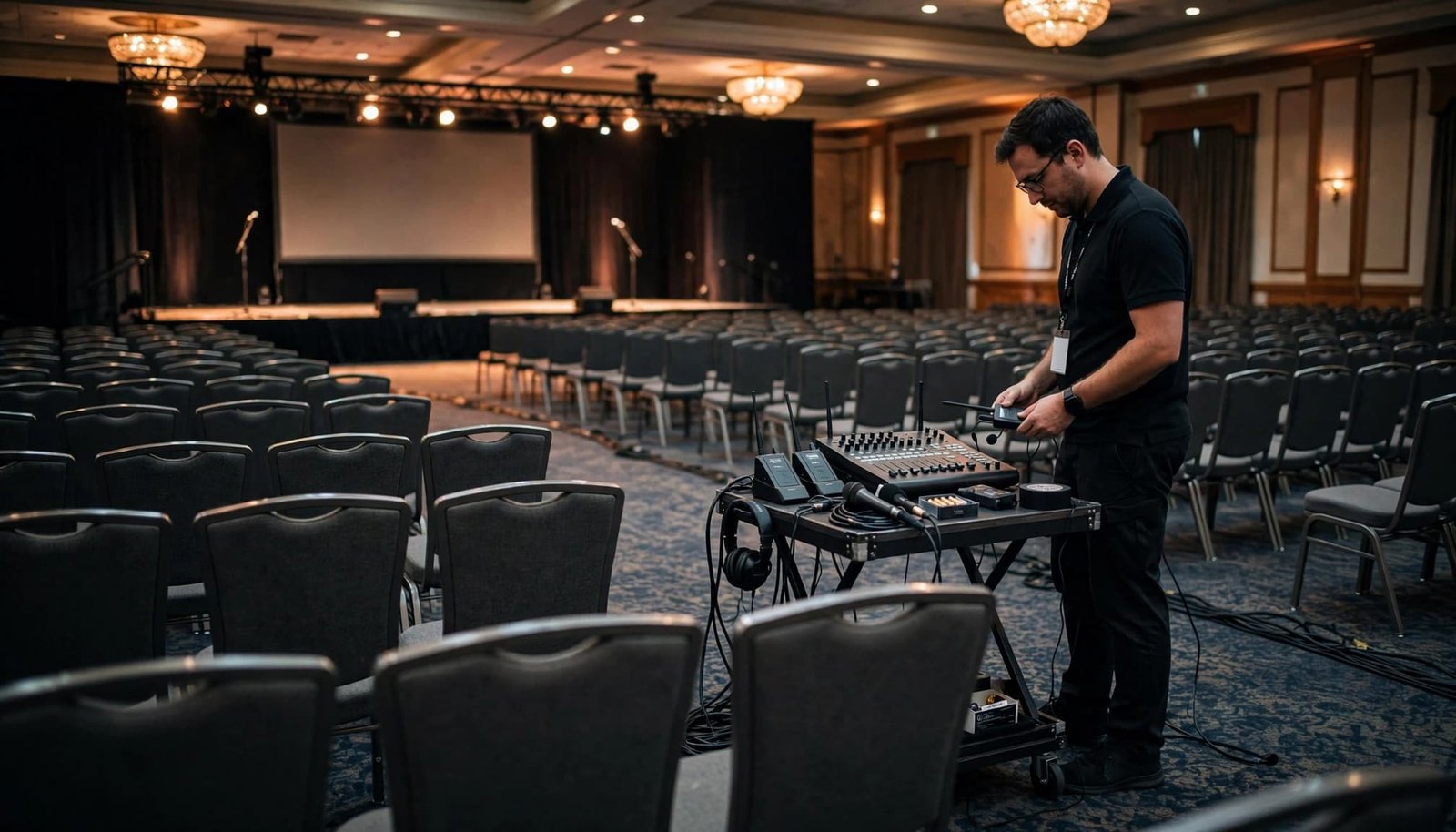
Run the actual deck in slideshow mode through the event laptop, adapters, display, mixer, and speakers. Play each media cue, including quiet dialogue, louder music, and the transition back to the presenter.
Walk the front, sides, and rear while someone speaks at normal presentation volume. Test wireless range, batteries, mute switches, and the positions presenters will use.
If playback fails, follow the signal path: computer output, cable, selected input, channel mute, input level, and routing. Microsoft’s PowerPoint playback troubleshooting guidance addresses compatibility and media problems.
A working video picture doesn’t prove the audio path is working. Listen through the room system before approving playback.
Finish with the opening announcement and first formal transition. Continue monitoring as guests arrive, since conversation and occupied seating change listening conditions.
6. Plan Backups and Hybrid Audio Separately
Backup equipment protects the program only when the team knows how to use it. Hybrid events add another audience and another audio path.
Assign a Practical Recovery Plan
Keep replacement microphones, batteries, cables, adapters, duplicate presentation files, and a second playback device ready. Document who supplies each backup and who switches it into service.
Name the person authorized to pause the program. If a video fails, the show caller can direct a brief hold or move to the agreed next segment.
Any fallback through the DJ’s sound system needs advance approval and testing. An untested connection isn’t a dependable recovery option.
Give Remote Attendees a Dedicated Audio Feed
Hybrid programs add cameras, capture cards where required, streaming equipment, reliable internet bandwidth, and a backup encoder plan. Use a dedicated wired internet connection when available.
For live streaming, send audio directly from the mixer rather than relying on a camera’s room microphone. Remote presenters need mix-minus routing, which prevents their own voice from being sent back to them.
A USB interface doesn’t automatically provide mix-minus or echo cancellation. Assign those functions and monitor the receiving stream through headphones on a separate device with its microphone and speakers disabled.
7. Budget for Equipment, Preparation, and Staffing
Spectrum Sound’s planning guidance suggests allocating roughly 10% to 15% of total event spending to professional AV production. Its essential corporate production starts at $695; that starting price isn’t a complete conference budget or our service rate.
Its guide describes one to two hours for basic single-room setup and four or more hours for larger productions. Complex conferences may need day-before access.
Compare audio visual services proposals by production scope.
| Program Scope | Equipment and Support |
|---|---|
| Single-room presentation | Room sound, microphones, display, presentation connection, and operator |
| Expanded ballroom program | Additional microphones, wider coverage, lighting, and cue rehearsal |
| Hybrid conference | In-room AV plus cameras, streaming audio, internet planning, and backup encoding |
| Conference AV | Separate coverage for the general session and breakout rooms, with room-specific microphones, speakers, and playback support |
Additional rooms, rehearsal time, staffing, and redundancy increase production requirements. MeyerPro cautions that lower pricing may reflect limited staffing, older equipment, or reduced planning support.
A full-service proposal should cover delivery, applicable rigging, cabling, power arrangements, a complete line check, and a technician who stays throughout the event.
When choosing a corporate event DJ, include these questions:
- Who operates presentation playback, controls house sound, and supports speakers?
- Which backups, rehearsal hours, overtime charges, and breakdown services are included?
- Who coordinates video, lighting, streaming, and emergency program holds?
Book once the date, venue, and production scope are established. Late booking reduces access to experienced technicians and backup equipment during peak periods.
Frequently Asked Questions
Can the Corporate DJ Handle PowerPoint Sound?
A DJ can manage presentation audio when the equipment, connections, staffing, and responsibilities are included in the agreed scope. Video playback, screens, and streaming may belong to a separate AV provider.
Our corporate services include DJ and MC support, professional sound, and event-flow coordination. A written division of responsibilities keeps those services connected to the wider production plan.
Why Does the Video Play Without Sound?
Common causes include the wrong computer output, muted media, a disconnected cable, or an inactive mixer channel. An HDMI connection can also send sound to the display instead of the intended audio system.
Work through the signal path in order. Avoid changing several settings at once, which makes the original problem harder to isolate.
Clear Playback Starts With Shared Preparation
Reliable corporate event audio depends on tested playback and assigned responsibilities. A prepared deck, dedicated audio connection, and rehearsed handoffs give presenters dependable support.
Build the soundcheck around the actual program, including every video and transition. With backups ready and one person directing cues, the team can keep attention on the presentation and the guest experience.