General sessions can often rely on one well-planned setup, but concurrent breakout rooms have different needs. Clear speech in breakout sessions depends on more than a good sound system; it takes event technology and an audio plan suited to each room.
Plan for people in the room, guests joining remotely, and sessions taking place through nearby partitions. Decide what each space needs to hear and who will control it.
Give Every Room a Clear Audio Job
Begin with the agenda, not an equipment list or a standard conference setup. Use an av setup checklist to plan breakout room audio by session. A workshop with table discussion needs different coverage than panels or general sessions with audience questions. A reception area may need background music and announcements, while a nearby training room needs a quiet setting for instruction.
For each of the breakout rooms, identify presenter locations, seating layouts, expected audience participation, video playback, and any remote attendees. Mark entrances and room dividers on the floor plan. These details guide your event technology plan and tell your DJ, venue team, or sound contractor where microphones and speakers belong.
Concurrent sessions need independent control. Keep each room’s audio sources, volume, and announcement controls separate. Lowering music in the lobby shouldn’t interrupt a presentation, and an announcement intended for one room shouldn’t arrive in another by mistake. Confirm who controls each audio zone and how speakers will be reached if a schedule changes.
How Breakout Room Audio Differs From a General Session
General sessions usually have one focal point: a stage or lectern facing a larger audience. Breakout room audio serves a smaller, more interactive program, often repeated across several nearby spaces.
This comparison helps you plan for independent room needs alongside general-session production.
| Program space | Main audio need | Planning priority |
|---|---|---|
| General sessions | Clear speech and program playback across a larger audience | Even audio coverage, coordinated cues, and reliable microphones |
| In-person breakout | Presenters and discussion heard comfortably within one room | Room-specific microphones and speaker setup |
| Hybrid breakout | In-room speech shared with remote participants | A tested connection between room audio and the meeting platform |
Size Coverage for the Audience
A smaller room doesn’t automatically need less planning. Participants seated around tables may speak from several positions, while a presenter moves between a screen and a lectern. Check whether natural conversation is enough or whether the audience needs an amplified microphone.
If reinforcement is needed, aim for even coverage at a comfortable level. One speaker turned up too high can make the front row uncomfortable without improving clarity at the back. Choose audio equipment to suit the room layout and audience.
Keep Program Audio Separate
General sessions may use a DJ for walk-on music, awards, introductions, and formal announcements. Breakouts may need separate microphones, a presentation-laptop connection, or an operator. Assign AV equipment and source control by room.
For events that move between presentations and celebrations, corporate event DJ services in New Hampshire can support music, hosting, microphones, and event-flow coordination. Confirm each room’s scope with a sound contractor and the venue’s event technology team.
Choose Equipment Around the Session, Not a Standard Package
A useful breakout room AV setup checklist starts with what people will do. Breakout rooms may need different plans from general sessions. A lecture may need one presenter microphone; a panel may need several. A workshop with video needs a tested path for presentation audio, even if the room won’t use music. Use the AV setup checklist to confirm audio coverage and connections for each room. Choose audio equipment and event technology around the session, then confirm what AV equipment the venue can provide.
Match Microphones to Speaking Styles
A wireless microphone is flexible for audience questions and speaker handoffs. A presenter who needs both hands free may prefer a wearable microphone, depending on the room and available equipment. Test each microphone where it will be used, including the front, side, and rear of the audience area.
Ask how many people will speak at once. Confirm who provides batteries, spare cables, and a backup microphone. A second wireless microphone is especially useful for tightly timed introductions or awards.
Check Sources, Power, and Access
List every audio source: presenter laptop, video playback, DJ music, podium microphone, and meeting-platform audio. Assign a named operator to the mixing console and each room connection. House AV and DJ-provided sound should have an agreed handoff, so neither team assumes the other is supplying it. Coordinate the plan with the venue and sound contractor.
Review power, load-in access, and approved cable routes with the venue. Keep cables clear of doorways, emergency exits, and accessible travel paths. If the event requires more rooms or operators, request an itemized proposal that shows what’s covered in each space.
Prevent Sound Bleed Between Concurrent Sessions
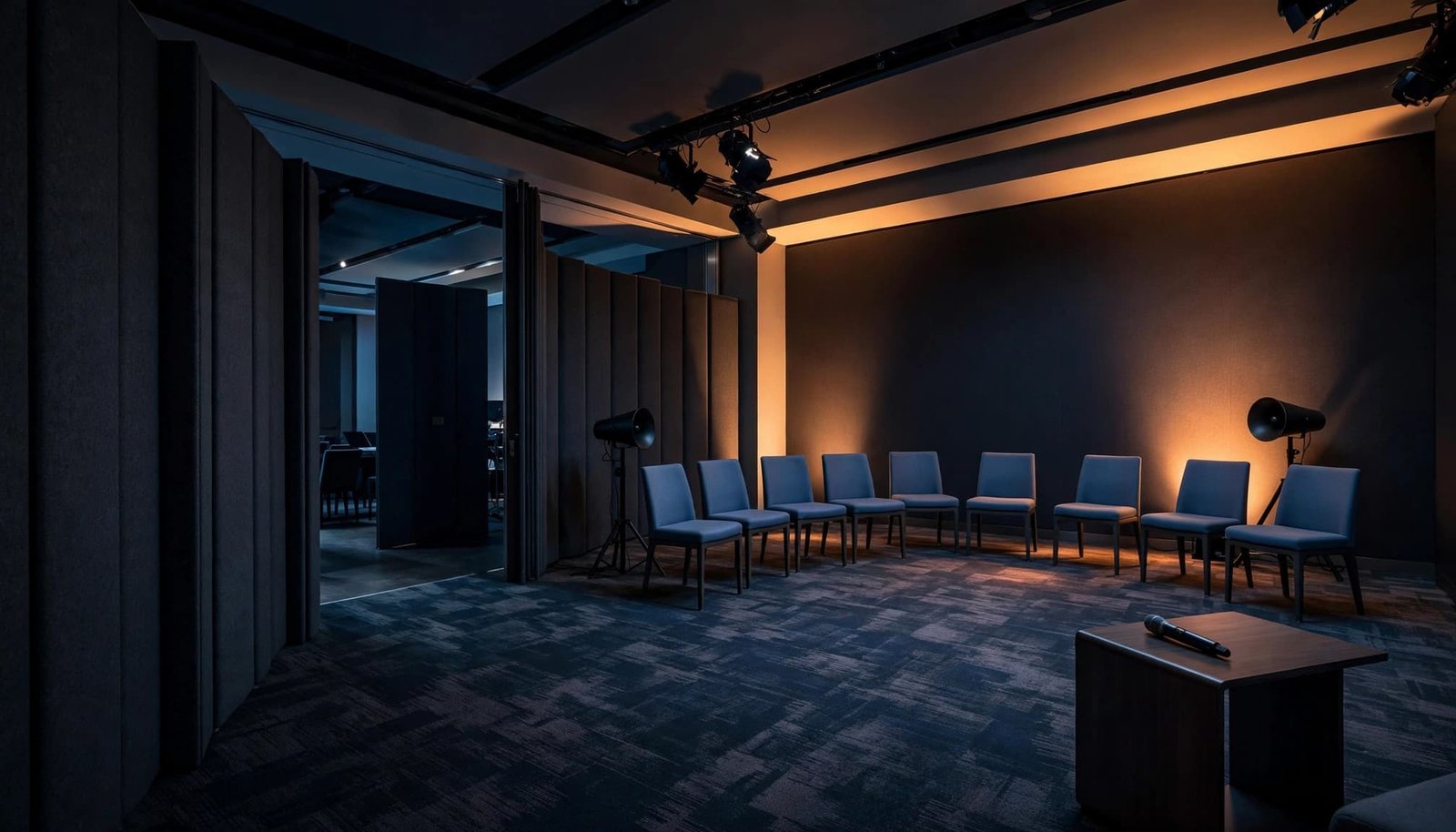
Adjacent rooms can interfere with one another even when every microphone works. Compared with general sessions, concurrent breakout rooms need careful level control: a speaker aimed at a movable partition can carry speech into the next presentation. Turning up the volume rarely solves sound bleed.
Aim Sound at Listeners
Good speaker positioning directs sound toward the people who need to hear it, not shared walls or nearby tables. A suitable speaker setup with smaller speakers covering a shorter distance may provide more even sound than one oversized system pushed hard. Keep microphones away from the speakers’ main coverage area to reduce feedback.
Shure’s conference-room speaker placement guidance also notes that reducing speaker volume can help with echo and reverberation. Walk the room during soundcheck; listen near the front, at the back, and beside the partition.
Test the Rooms Together
Room dividers may make spaces look separate without providing enough acoustic isolation. Ask the venue or sound contractor what its partitions can realistically contain, then test adjacent sessions with the AV equipment at expected speaking levels. Build this check into the event technology plan, including checks for open doors, shared hallways, and nearby reception music.
If sound bleed carries across rooms, adjust speaker direction and levels first. Where the schedule permits, place quieter discussions beside each other or stagger the loudest program moments. Test again after attendees arrive; a full room sounds different from an empty one.
A breakout room can sound clear on its own and still disrupt the session next door. Check both rooms at the same time.
Plan Hybrid Audio as a Two-Way Conversation
As with general sessions, a camera pointed at the presenter doesn’t guarantee remote guests can follow the discussion. They need to hear speakers in the room, and people in the room need to hear remote contributions without echo or feedback. Clear meeting audio depends on planning both directions.
Trace Both Audio Paths
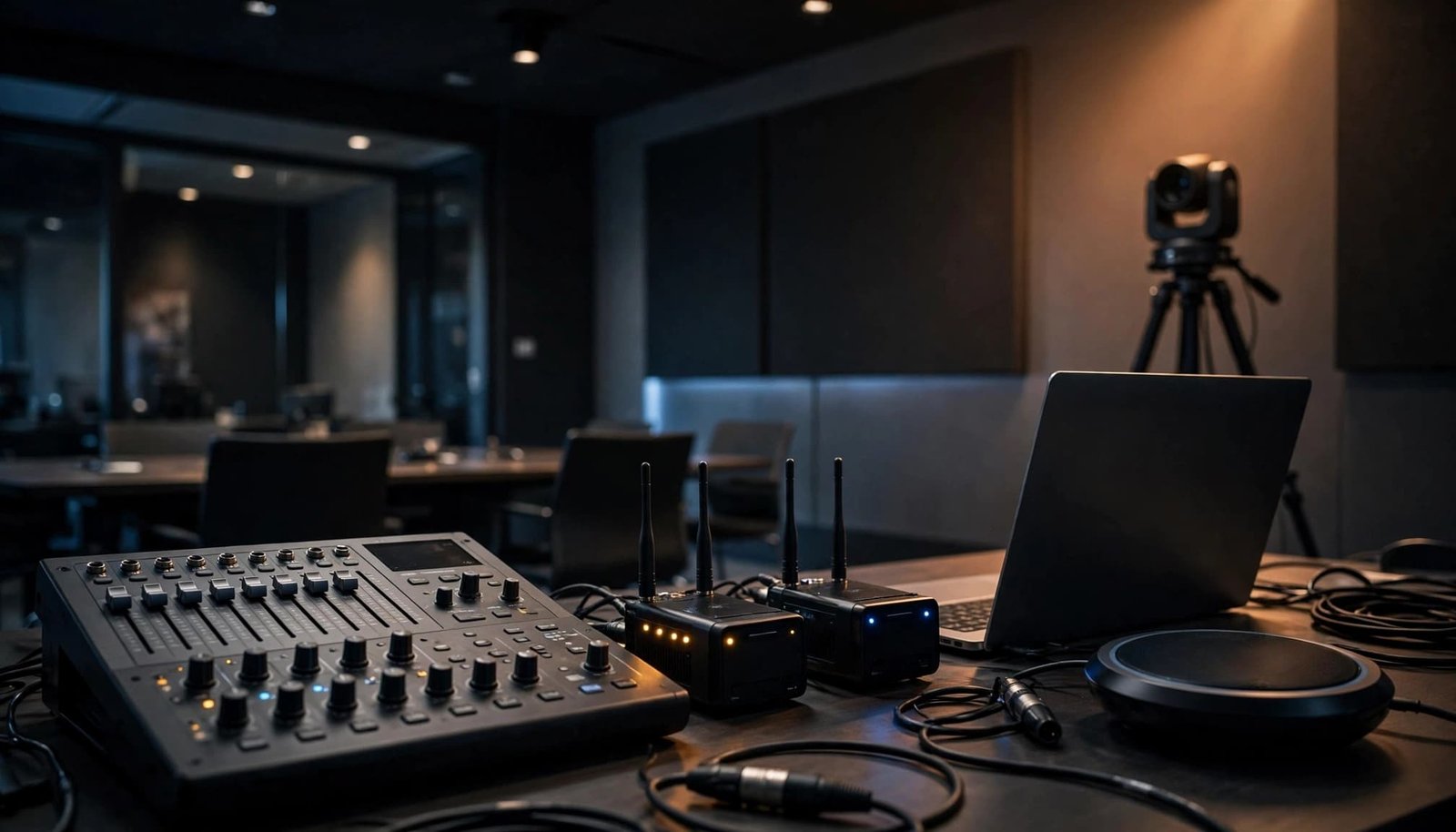
Map which microphones send audio to the room speakers, which feed the meeting platform, and where remote voices return to the room. Note whether presentation video audio also needs to reach remote guests.
The operator at the mixing console should assign each send and return correctly, keeping remote callers’ audio out of their own feed to prevent echo. A venue AV technician can configure the av equipment and test echo control to protect audio quality. If the room uses Microsoft Teams equipment, meeting room mode instructions explain how to select a connected room audio device.
Rehearse With Someone Outside the Room
Have a remote tester listen to a presenter, an audience question, and video playback if it’s on the agenda. Then ask that person to speak while people in the room listen. This catches problems a soundcheck conducted entirely in the room can miss.
Use the same microphone handoff planned for the live program. Keep the meeting laptop, its power supply, and the assigned operator in the room throughout the session; an unattended connection can delay a simple audio change.
Troubleshoot Microsoft Teams Breakout Audio
For virtual participants, transitions between breakout rooms can expose a device or connection problem at exactly the wrong time, just as in general sessions. Give attendees a short recovery path and keep event technology support available for anyone who loses sound.
Check Devices Before Rejoining
First, check mute status and confirm the selected microphone and speaker in the audio settings. Make sure the device or browser allows Teams to use them. Microsoft’s Teams audio settings guide covers those selections and permissions.
If audio still fails, check the physical microphone connection and available updates. Microsoft’s microphone troubleshooting steps provide a useful sequence. Where possible, test the connection before sending everyone into separate rooms.
Treat iPad Dropouts as a Reported Issue
Some users, including ipad users, have reported losing audio after a Microsoft Teams breakout-room assignment. A Microsoft Q&A discussion of breakout audio loss describes the problem, but it doesn’t establish one cause for every affected device.
If an iPad user loses audio, have them check mute status, the active audio output, microphone access, and app updates. Then try leaving and rejoining the meeting if the host can accommodate it. A separate test device is a practical backup for an essential presenter. Hosts can also review Microsoft’s breakout-room management instructions before the event.
Put the AV Plan Into the Run of Show
Equipment decisions need to reach the people operating them. For a conference setup, share one current room diagram and schedule with the planner, venue contact, DJ or MC, and AV lead. Include setup access, session start times, room changes, microphone handoffs, and who can request a level adjustment. Use an AV setup checklist to assign each room’s audio sources and microphones, from general sessions to breakout rooms. Note speaker placement, expected levels, cues, transitions, presenter handoffs, and backup connections. Keep the event technology plan current as schedules change.
Run a Room-by-Room Soundcheck
Test a speech sample in every space, not only music, to check live sound and meeting audio. Add presentation video, walk-on cues, and remote audio paths wherever the program uses them. Listen at the front, sides, and rear, then check the neighboring room for sound bleed.
Allow enough time to correct a weak connection or move a speaker before doors open. A complex conference may call for earlier access or a day-before setup, depending on the venue and production scope.
Agree on Ownership and Backup
Write down who supplies each microphone, speaker, mixer, laptop connection, and backup. Keep the AV setup checklist with the run of show. Confirm who will lower reception music during remarks and who can pause a session if its audio fails.
DJ Steve Neff Entertainment LLC has provided professional DJ entertainment since 1999 and is now based in Concord, New Hampshire. For a corporate program, planning your event music and sound setup starts with the rooms, schedule, and services you need. Where a conference requires dedicated AV production, clarify how the DJ, venue, and production team will work together.
Key Takeaways
- Give every room its own purpose, audio sources, and control owner. Breakout sessions need different coverage than general sessions.
- Use an av setup checklist to check microphone placement and sound bleed before raising volume.
- For hybrid sessions, test what remote and in-room participants hear in both directions to confirm audio quality.
- Rehearse transitions, microphone handoffs, and backup steps before the first session.
Frequently Asked Questions
Does Every Breakout Room Need a Sound System?
No. Some breakout rooms work without amplification when everyone can hear and participate comfortably. Unlike general sessions, presenter-led programs, recorded content, or rooms with remote attendees often need microphones and planned speaker coverage. Test the seating layout before deciding.
Can One DJ System Cover Several Concurrent Rooms?
It depends on the room layout and whether sessions need independent audio. Separate presentations usually need independent source control, even if some AV equipment can be shared. Ask the provider and venue AV team to map connections and operator responsibilities before finalizing the package.
What’s the First Fix for Sound Bleed?
Listen in the neighboring room while the session runs at its expected level. Check speaker direction and volume, then inspect doors, partitions, and the schedule. If needed, check the source audio device to pinpoint where unwanted sound is entering.
Clear Audio Starts With a Room Plan
When breakouts run alongside general sessions, the strongest audio plan is tested across the event, not room by room. Match equipment to each program, keep sound within its intended space, and confirm that remote guests can participate.
That preparation lets presenters speak clearly and helps attendees stay focused on the session they chose.